
Stock Scarcity
Campaigns
The Stock Scarcity campaign allows you to manage product stock visibility as well as create FOMO (Fear of Missing Out) among your customers. It's one of the newest campaigns added to BundleWise's list of discount campaigns.
If you need further assistance after reading this, please don't hesitate to contact us. We're always happy to help!
Create the Stock Scarcity Campaign
To create a "Stock Scarcity" campaign, follow these simple steps from your Shopify Dashboard:
- Navigate to BundleWise → Campaigns.
- Click on the Create Campaign button.
- A pop-up will appear — find and select Stock Scarcity.
- Click the Create the Campaign button to proceed.
This will initiate the process of setting up your stock scarcity campaign.
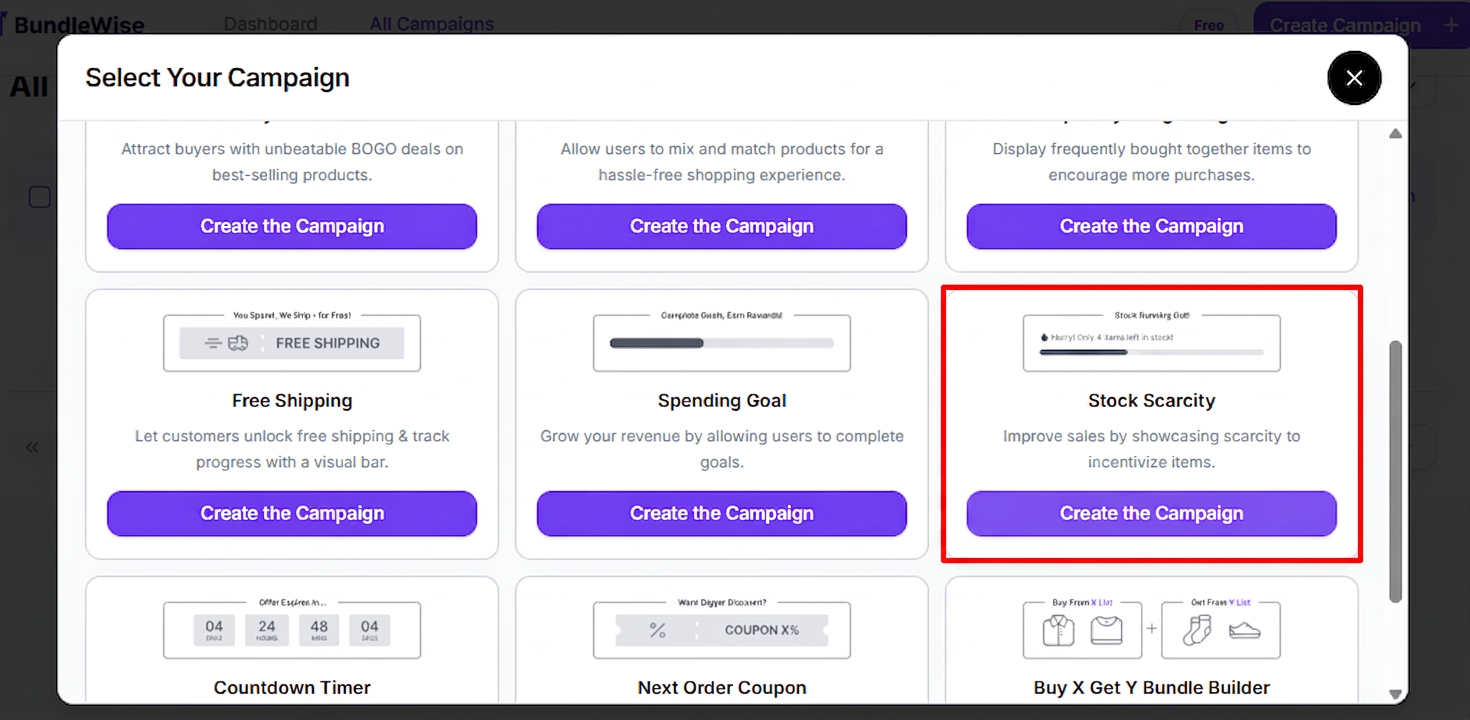
Initial Campaign Setup
There are a couple of things you need to do before your stock scarcity campaign is fully ready:
Select the Pages — Where You Want the Campaign to Run: The stock scarcity campaign can currently run on:
- Product Page
- Cart Page
You can enable or disable certain page combinations using the Product Page Status toggle. This feature is super helpful when running A/B testing on your Shopify store. Or you can select only certain pages from the very beginning.
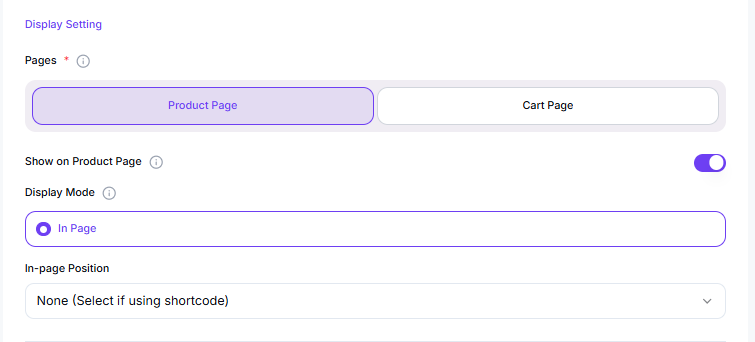
Stock Scarcity Bar Appearance
Please note that the stock scarcity bar can only appear in an in-page position. There are a couple of places you can make the scarcity bar appear — select them from the dropdown.
There are 4 available positioning options for the in-page placement.
Stock Scarcity Trigger Product
Just like any other BundleWise campaign, you need a trigger product for the campaign to work properly. You can set the trigger for:
- All products
- A specific category of products, or
- A specific product
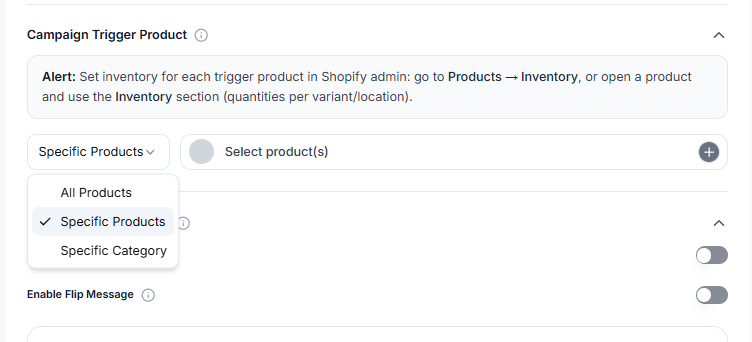
Core Campaign Settings
There are 3 core settings you should know about:
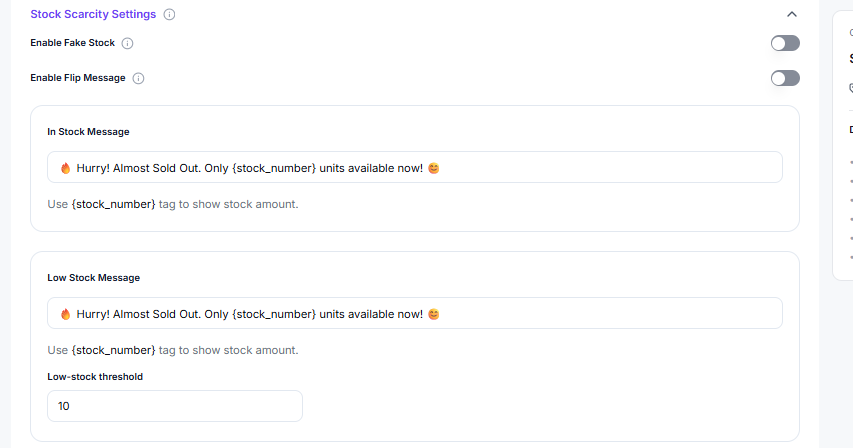
1. Managing the General Stock
There are 3 options of interest here:
- In-stock Settings: Set the in-stock item number here. You can also enable the stock progress bar using the Enable Stock Bar toggle.
- Low-stock: Enable it and set a low-stock number. Once the item count goes below this number, the low-stock message will appear.
- Urgent Stock: Enable it and set an urgent stock number. Once the item count goes below this number, the urgent-stock message will show up, letting the user know that the product may go out of stock very soon.
2. Managing Fake Stock
Oftentimes you need to show stock to create FOMO among users. In this case, you can enable the fake stock option. Please note that it is only available under the General Message settings. To use fake stock:
- Toggle the Enable Fake Stock button to the On state.
- Enable or disable the Enable Stock Bar toggle for the fake stock.
- Enable / disable the repeat interval — enabling it will repeat the stock even if the stock is completely depleted.
Note: You can manage low stock and urgent stock for the fake stock system as well.
3. Flip Message
The flip message system acts as a dynamic setting where multiple messages show up regarding the product stock. Once enabled, you can input:
- The stock number — the product stock.
- The buyer view number — how many people are viewing it.
- The user number — how many users are using or interacting with it.