
Countdown Timer
Campaigns
The BundleWise Countdown Timer feature is here. A sales countdown timer is a well-known sales tactic across the globe — popular for boosting sales numbers of Shopify stores.
If you need further assistance after reading this, please don't hesitate to contact us. We're always happy to help!
Create the Countdown Timer Campaign
To create a "Countdown Timer" campaign, follow these simple steps from your Shopify Dashboard:
- Navigate to BundleWise → Campaigns.
- Click on the Create Campaign button.
- A pop-up will appear — find and select Countdown Timer.
- Click the Create the Campaign button to proceed.
This will initiate the process of setting up your Countdown Timer campaign.
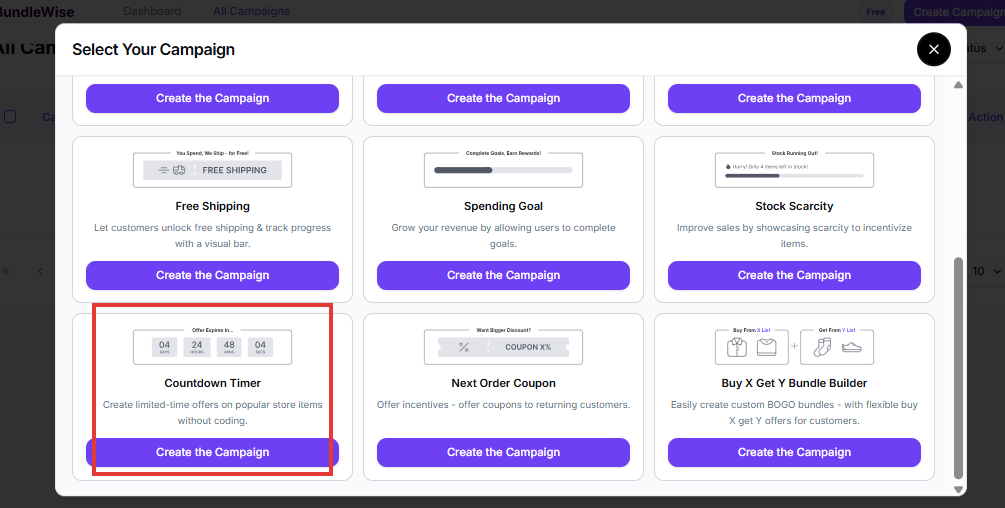
Initial Campaign Setup
There are a couple of things you need to do before your countdown timer campaign is ready:
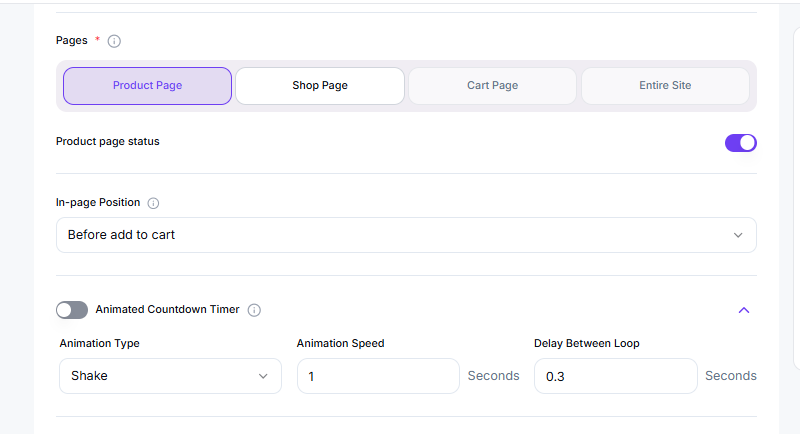
Select the Pages — Where You Want the Campaign to Run. The countdown timer can currently run on:
- The Product Page
- The Cart Page
- The Shop Page, and
- The Entire Site
You can set the countdown timer campaign for the pages mentioned above. Here are a few things you should note:
- To select one of the pages mentioned above, use the "+" icon.
- Use the page status toggle to enable or disable a page.
- Select the in-page position from the dropdown.
Please note that the in-page position for the Entire Site is either at the top or the bottom of the page. The appearance for the entire site will also be different.
For the rest of the 3 pages, there will be different in-page positions. You can choose them from the dropdown by selecting the respective page.
Countdown Timer Trigger Product
Just like any other BundleWise campaign, you need a trigger product for the campaign to work properly. You can set the trigger for:
- All products
- A specific category of products, or
- A specific product

Core Campaign Settings
The timer settings are the core settings here. You will find 3 types of timers:
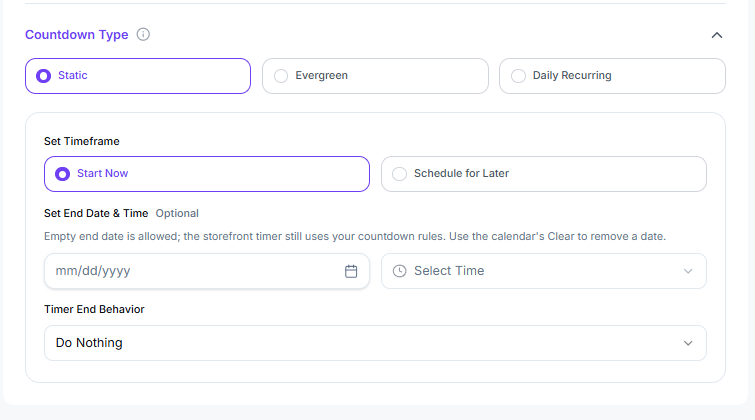
1. Static Timer
The static timer is pretty straightforward. You can start and end the timer at a specific date and time. To set a static timer:
- Either choose to start immediately (select Start Now) or specify a starting and ending time (select Schedule for Later).
- Set the start and end times if you plan to run it for a specific period.
- Select the timer ending behavior — you can either hide the timer or show it as it is (both options are available in the dropdown).
Note: If you select Start Now, you only need to set the end date and time.
2. Evergreen Timer
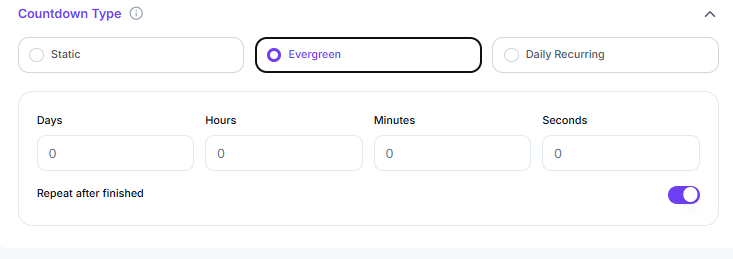
The evergreen timer lets you set timings for sales in an "evergreen" way. There's also a button you can use to repeat the timings.
- You can repeat the timer once it runs out — simply toggle the Repeat After Finished option.
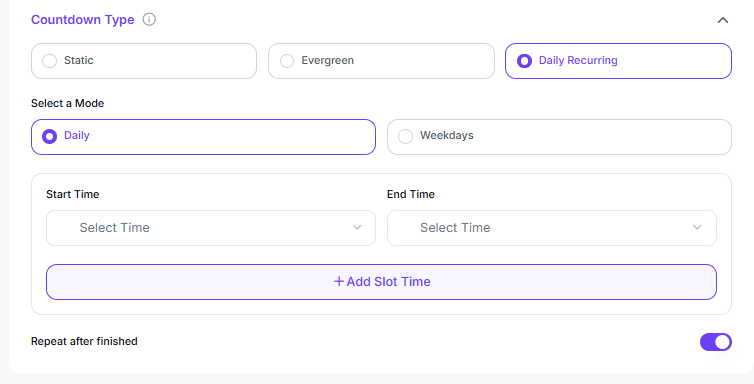
3. Daily Recurring Timer
The daily recurring timer requires you to set a start time and an end time. Based on your selection, the timer will run within the set hours.
- The timer will run within the selected timeframe.
- You can also set the timer for specific weekdays — again, set the start and end timings for the chosen weekdays.
Animated Timer
You can make the timer animated as well. It's as simple as turning on the toggle and setting it up.
FAQ
Can I change the campaign heading and sub-heading?
Yes, you can change them through the Primary Headline and the Campaign Details settings.
Can I change the appearance of the campaign?
Yes, you can. From the right-hand side, you can access the design settings. From the settings panel, you can access options to change the appearance of the campaign.