
Additional Settings
Design Your Campaign
The Additional Settings section allows you to fine-tune your campaign functionality. You can tweak settings like skipping the cart page or enabling quantity selectors. You can also decide what happens when users click on product titles or images. Here’s how you can configure each option:
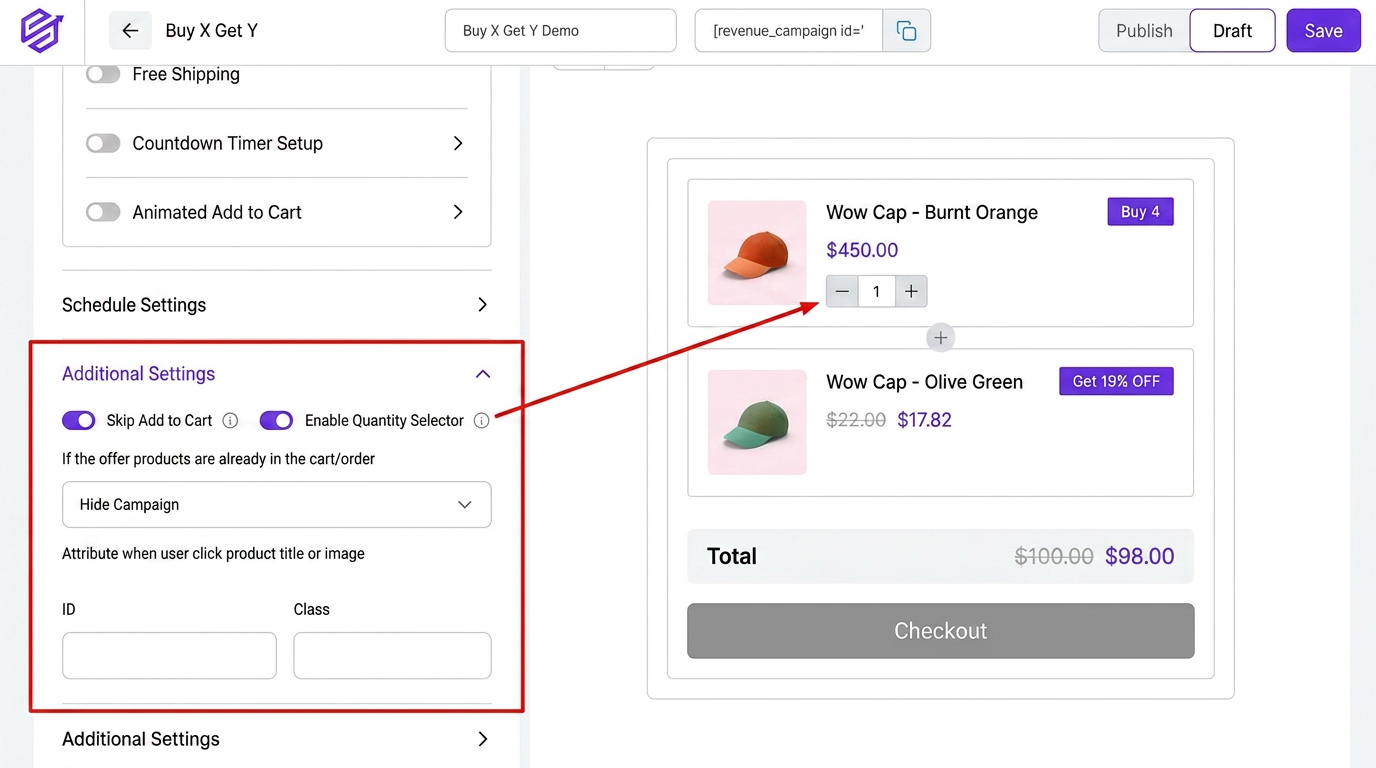
Skip Add to Cart
Make it easier for customers to buy by skipping the cart step entirely and taking them straight to purchase. To do this:
- 1Turn on “Skip Add to Cart”
Enable Quantity Selector
Let customers add product quantities directly in the offer section before adding to the cart. This way, they don\u2019t need to go to another page to adjust quantities. To do this:
- 1Turn on “Enable Quantity Selector”
Offer Products Are in the Cart
Select an option to determine how to manage products that are already in the user\u2019s cart or order. The user is presented with a dropdown menu.
- 1Do Nothing
- 2Hide Products
- 3Hide Campaign
Product Title/Image Click Action
This option lets you decide what happens when a user clicks on the product title or image. You can choose from three possible actions. Select the one that best fits your strategy.
- 1Go To Product Page: The user will be taken to the product page they clicked on.
- 2Show Product Details on Popup: Clicking on a product will open a popup with its details.
- 3Do Nothing: No action will be taken. The user will remain on the current page.
Input ID and Class
This allows you to have more tailored customization options.
- 1Enter custom IDs or CSS classes in this field to personalize the product display.