
Campaign Headline and Schedule Settings
Design Your Campaign
Configure how your campaign appears to visitors and when it runs. The headline and details help communicate your offer, while schedule settings give you precise control over campaign visibility.
If you need further assistance after reading this, please don’t hesitate to contact us. We’re always happy to help!
Campaign Headline (Visible to Audience)
To add a primary headline and the details for the campaign:
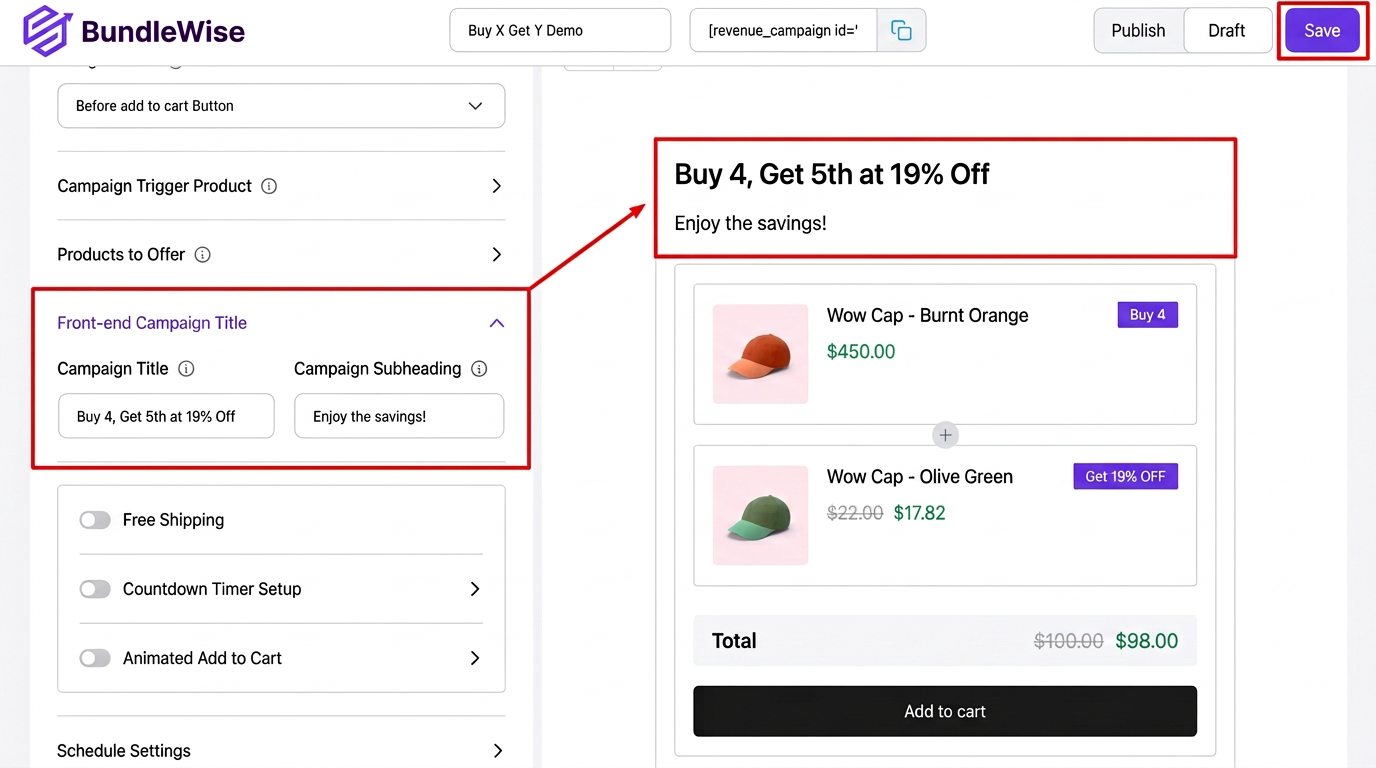
- 1Navigate to the “Campaign Headline (Visible to Audience)” section in any campaign.
- 2Write and add a Primary Headline to grab attention.
- 3Add Campaign Details to explain the campaign’s purpose.
- 4That’s it!
Schedule Settings
This setting allows you to set a specific time frame for your campaign. You can specify the start date for the campaign. If required, you can also set an end date. This enables you to have precise control over the campaign\u2019s duration. To set the campaign duration:
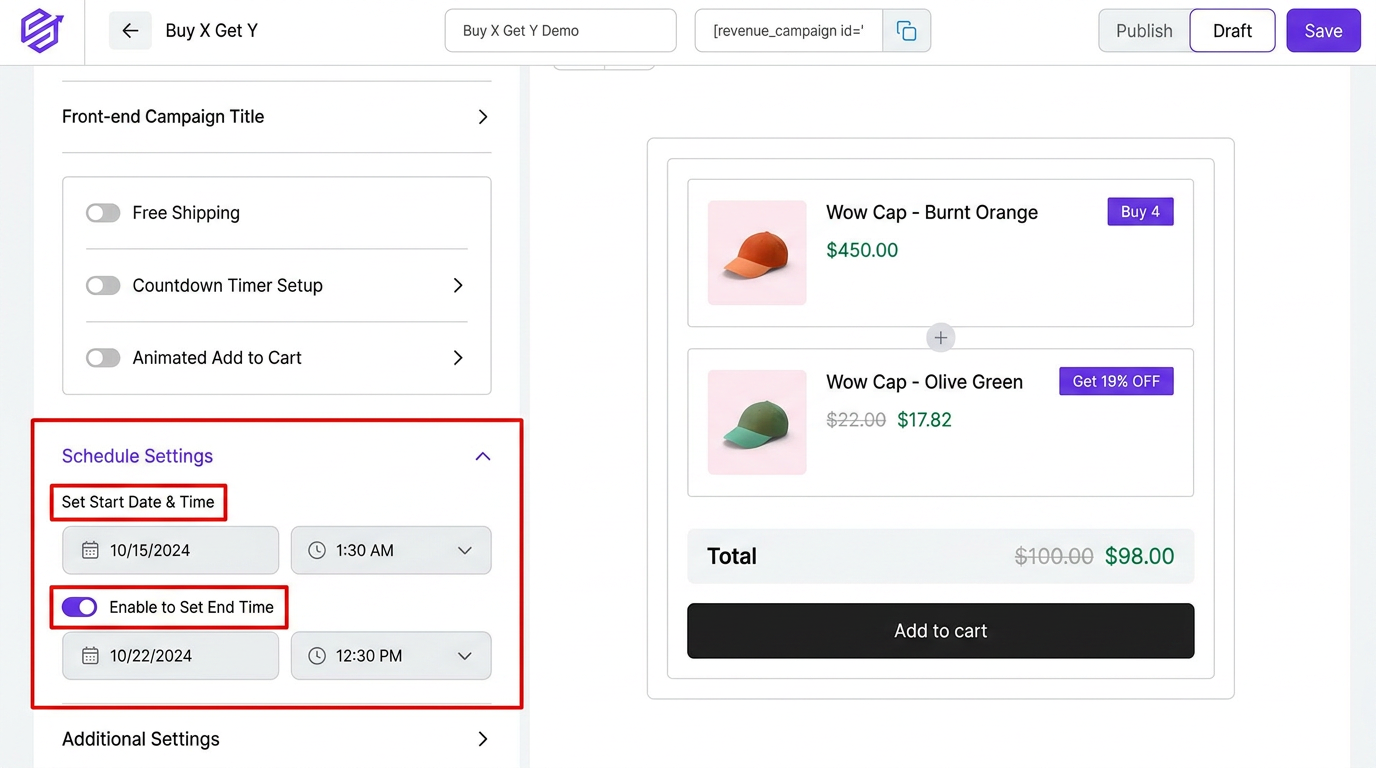
- 1Navigate to the “Schedule Settings” Section in any campaign.
- 2Pick the desired start date using the date picker.
- 3Select the start time from the dropdown.
End Date Setup
By default, campaigns have no end date and remain active indefinitely. But you can set an end date for your campaign. To specify an end date:
- 1Switch on the “Enable to Set End Time” option.
- 2Choose the desired end date using the date picker.
- 3Select the end time from the dropdown.