
Buy X Get Y Bundle Builder
Campaigns
A Buy X Get Y Bundle promotion lets shoppers unlock Product Y (free or discounted) when they qualify by buying Product X according to your rules—for example "buy two of X, add Y at no extra cost."
Create a Campaign
Follow these steps to create a Buy X Get Y Bundle Builder campaign.
- From Shopify admin, open your embedded app (Apps → Discount Plugin).
- Go to Campaigns.
- Click Create campaign.
- In the modal, choose Buy X Get Y Bundle Builder.
- Click to create the campaign and open the editor.
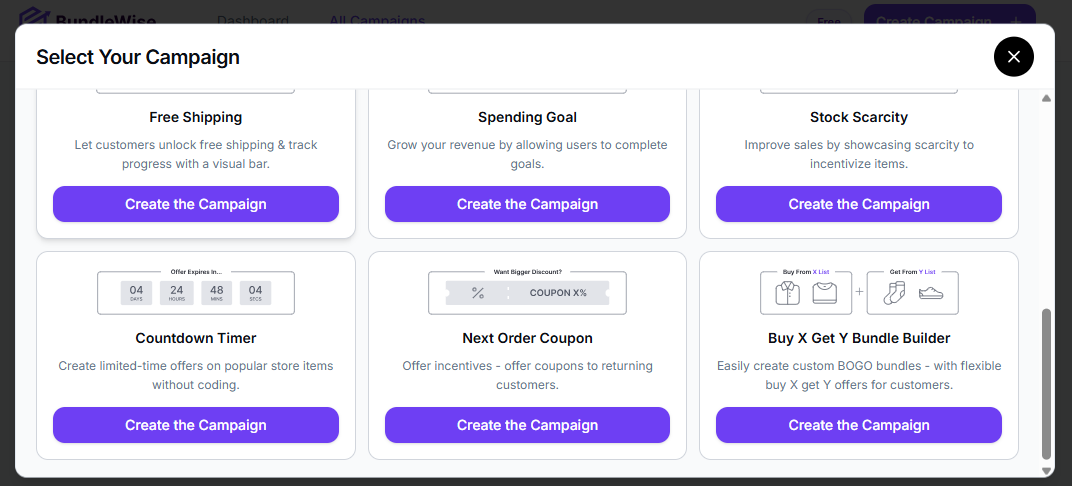
Campaign Heading
Campaign name (title): Use a clear name for the campaign—it appears on the storefront widget and helps you manage multiple campaigns.
Campaign subtitle: Optional supporting line shown with the bundle offer.
(There is no separate "short code" field in the form; a slug is derived from your campaign title for theme integration—see Short codes & theme placement below.)
Pages
For Buy X Get Y Bundle Builder, the editor includes two page tabs only:
| Page | Purpose |
|---|---|
| Product Page | Shoppers see the bundle while viewing a relevant product page. |
| Cart Page | Shoppers see the bundle offer in the cart. |
Page Status: For each tab (Product Page / Cart Page), select the tab and use the page status toggle (Show on Product Page / Show on Cart Page) to enable or disable the campaign on that page. At least one page must stay enabled.
Display Mode
Choose how the offer appears per page tab (Product and Cart can differ):
1. In Page
The bundle block is injected into the theme at a fixed hook. After choosing In Page, open In-page Position and pick a slot from the dropdown.
Product page — example positions:
- Before add to cart Button
- After add to cart Button
- After single product summary
- Before single product
- After single product
Cart page — example positions:
- Before cart table
- Before cart
- After cart table
- After cart
- Before Cart Total
- After Cart Total
- Proceed to Checkout
2. Pop-up
The offer opens as an overlay.
- Choose Animation Type: Fade, Slide, Zoom, Shake, or Bounce.
- Set Appearance Delay (seconds) to 0 for immediate display, or a higher number to delay.
3. Floating
The offer stays in a floating panel.
- Same Animation Type and Appearance Delay controls as Pop-up.
- Floating Position: Top Left, Top Right, Bottom Left, or Bottom Right.
Drawer display mode is not used for this campaign (Pop-up / Floating / In Page only).
Short Codes & Theme Placement
To pin the widget in your own Liquid (optional), add a placeholder and match the slug the app derives from your campaign title (saved as shortCode in campaign data):
<div data-discount-shortcode="YOUR_SLUG_HERE"></div>The storefront script replaces that node when the campaign is published and eligible. If you rely on hooks only, you do not need a short-code div.
Bundle Products to Buy (X)
This section configures what the customer must satisfy before they get Y.
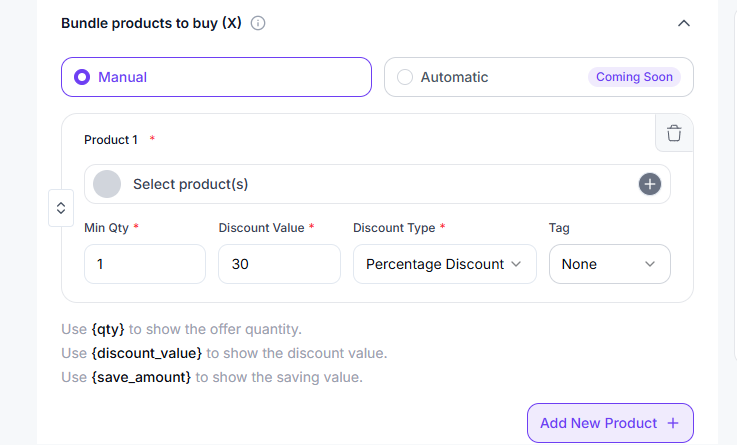
Manual / Automatic:
- Select Manual to pick products yourself.
- Automatic shows as Coming soon — use Manual for now.
Offer rows ("Customer Buys"):
- Click + to open the product picker and choose one or more X products for that tier.
- Set minimum quantity required for that line.
- Set discount value where applicable.
Discount types for X rows:
| Type | Meaning |
|---|---|
| Percentage Discount | Reduces price on the X side by a percent. |
| Fixed Discount | Subtracts a fixed amount from the X line. |
| No discount | X is priced normally (common when only Y is rewarded). |
| Free | X portion is treated as free in the tier. |
Add more tiers: Use Add New Offer Product (+) to stack additional X rows; drag the handle to reorder; use the trash control to delete a row.
OR / AND between products: This Bundle Builder UI does not expose Woo-style Product relation (OR vs AND) toggles. The storefront merges this bundle type with an AND-style requirement across the flattened "buy" set (all qualifying X selections must be met for the deal as implemented—see Shopify discount behavior once published).
"All products X" / "Category trigger": WooCommerce flows often offer "all products" or "specific category." This campaign is built around chosen products per row (specific-products triggers only). Category-wide or storewide X is not selected from a category picker here.
Set individual quantity per X product: There is no separate toggle labeled "individual quantity"; you set quantities per tier row (minimum quantity fields). Quantity steppers / line behavior follow Additional Settings (see below).
Bundle Products to Get (Y)
This section configures what the shopper receives as the promoted part of the bundle.
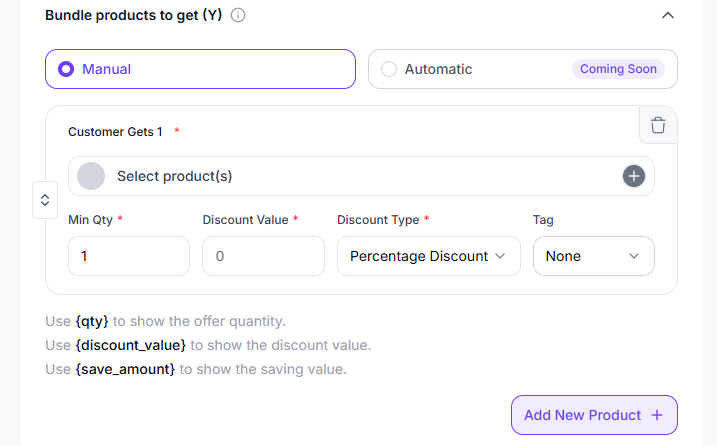
Manual / Automatic: Same as X — choose Manual; Automatic is Coming soon.
For each row (labeled Customer Gets):
- Select Y product(s). Products already used as X are excluded from Y to prevent duplicates.
Discount value & type: Typical options per row (Percentage Discount, Fixed Discount, Free).
Woo-style Fixed price per line ("fixed total for quantity") / fixed unit price are not the default picker set on Y rows—stick to Percentage / Fixed amount off / Free as shown in the UI.
Tags, tiers, reordering: Drag to reorder tiers; delete with the trash icon; add tiers with Add New Offer Product.
Tokens in tier copy (optional):
{qty}— offer quantity{discount_value}— discount amount{save_amount}— savings amount
(Appears below the tier list in the form.)
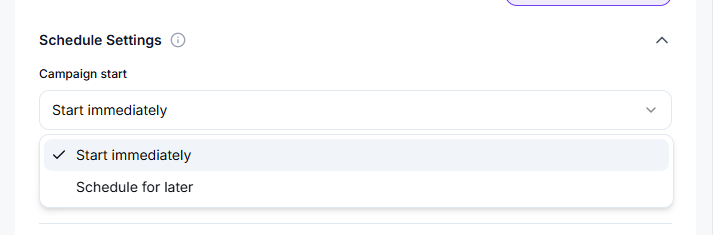
Schedule
Use Schedule settings like other campaigns (start/end, optional countdown). Countdown timers and labels can tie into the storefront widget when enabled.
Additional Settings & Behavior
Important toggles bundled under Additional settings:
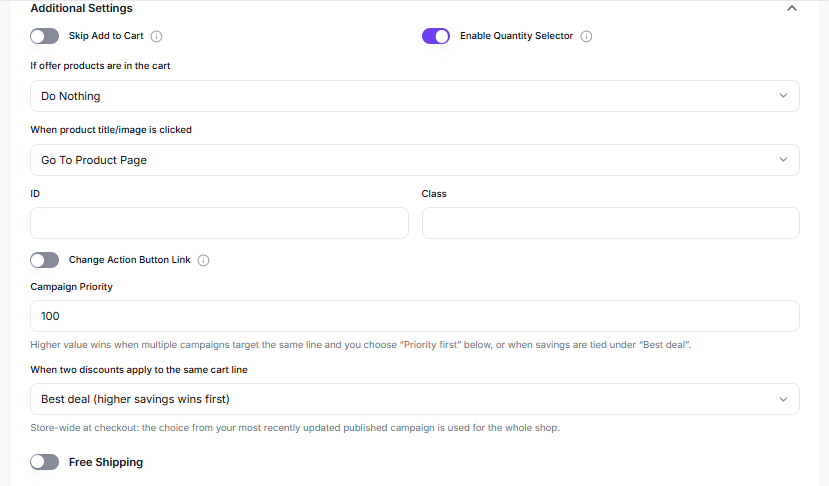
- Skip add to cart / Claim offer style CTA labels
- Enable quantity selectors — show +/- quantity on bundle lines
- If products in cart visibility rules
- When product is clicked (e.g. go to product page)
- Custom ID / CSS class for embedding
- Button label / link overrides
- Campaign priority & conflict resolution when multiple bundles compete
- Free shipping badge
- Button animation (on-hover / loop, style, delay)