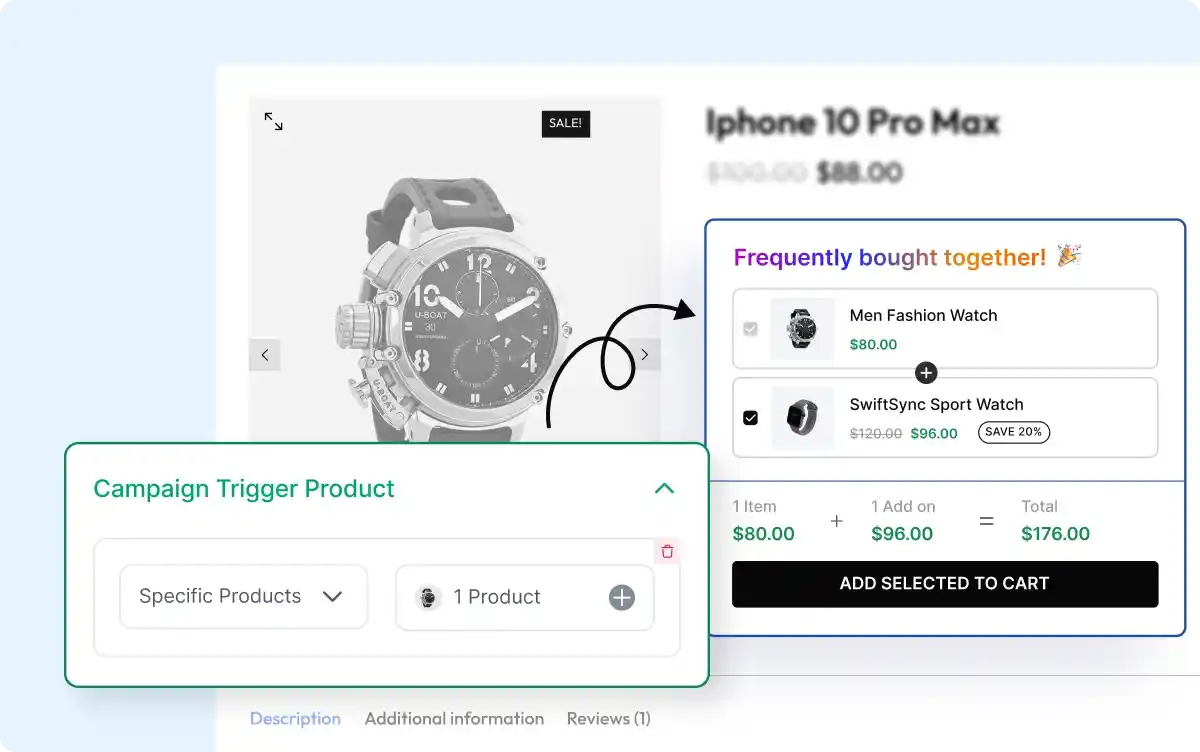
Set Trigger Products for Your Offers
Define which products activate the frequently bought together offers, ensuring promotions appear at the right time and for the right items.

Increase sales with Frequently Bought Together for Shopify, allowing customers to purchase related products together at discounted prices.
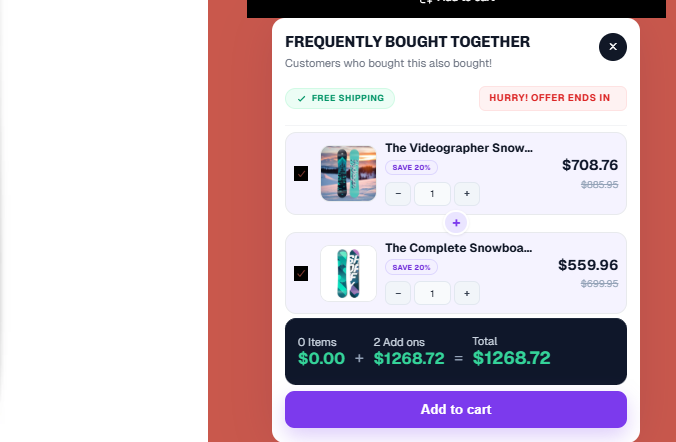
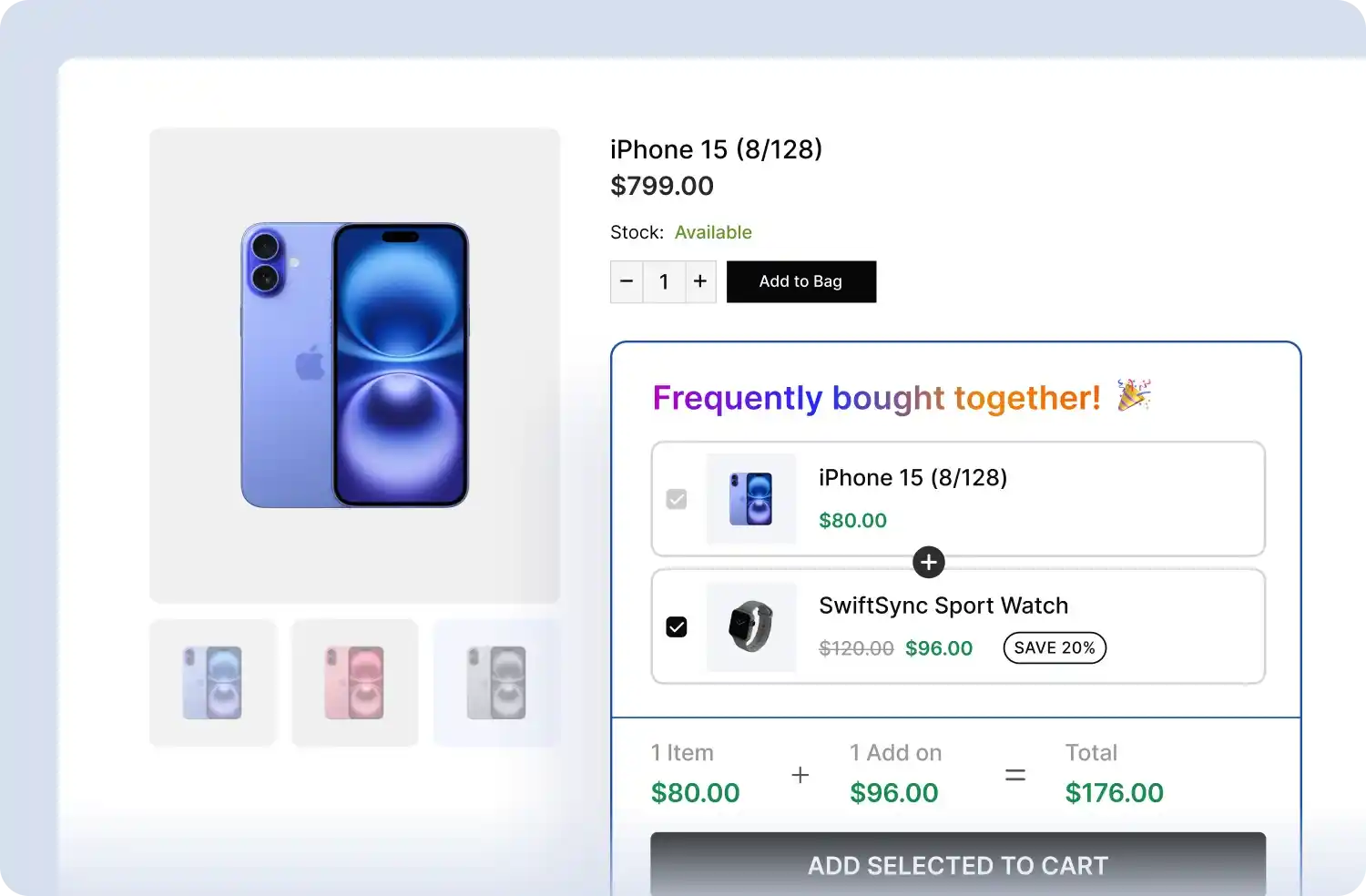
Display 'Frequently Bought Together' offers on key pages to maximize visibility, boost cross-sells, and increase order value throughout the shopping journey
Display frequently bought together products directly on product pages to encourage customers to add more items to their cart before completing the purchase.
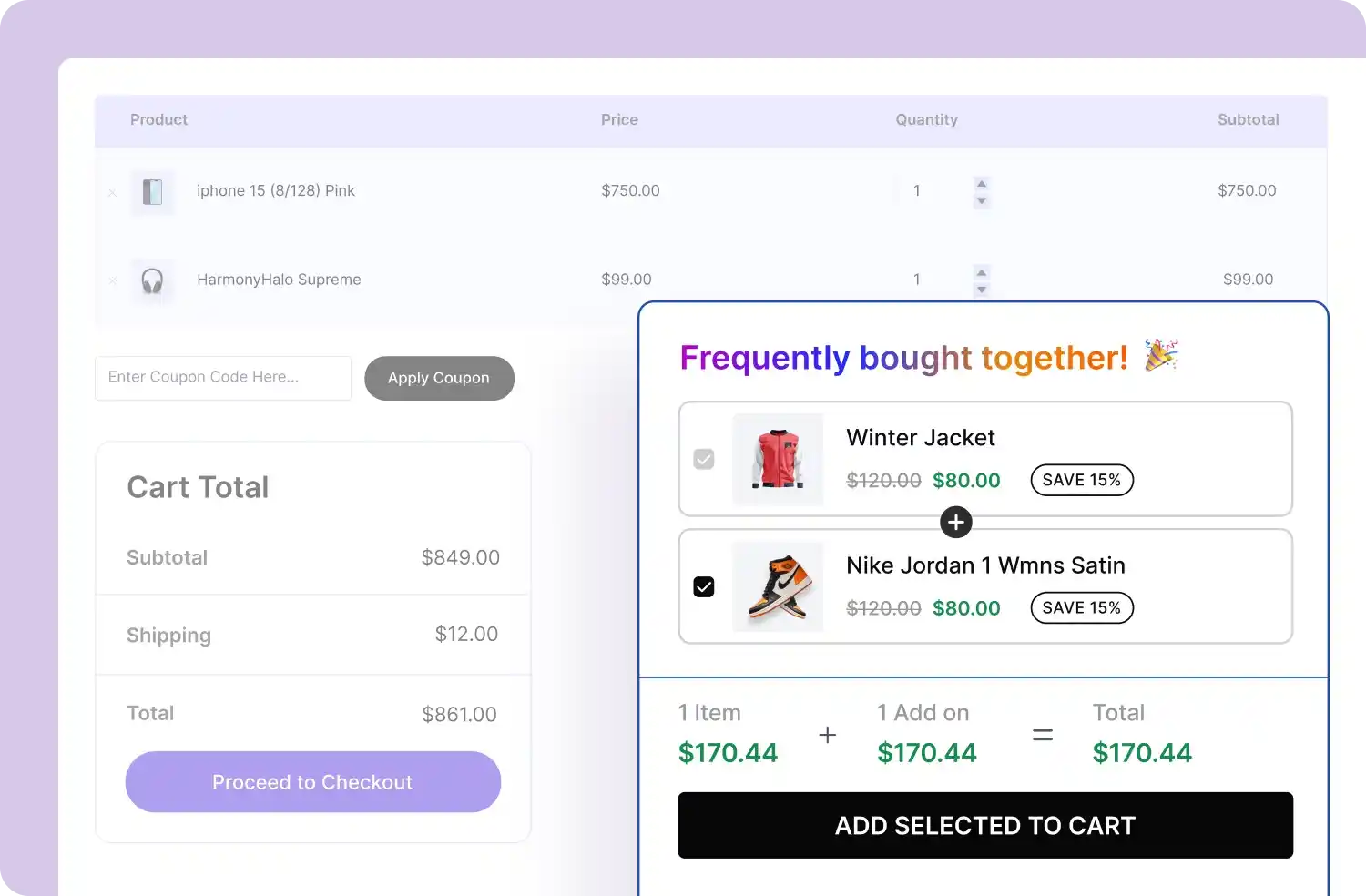
Remind shoppers of related frequently bought together items on the cart page, encouraging them to increase order value before checkout.
Show your frequently bought together offers exactly how you want – embed them in-page, grab attention with pop-ups, or keep them visible with floating displays
Blend 'Frequently Bought Together' offers naturally into your store pages for a seamless and smooth shopping experience.
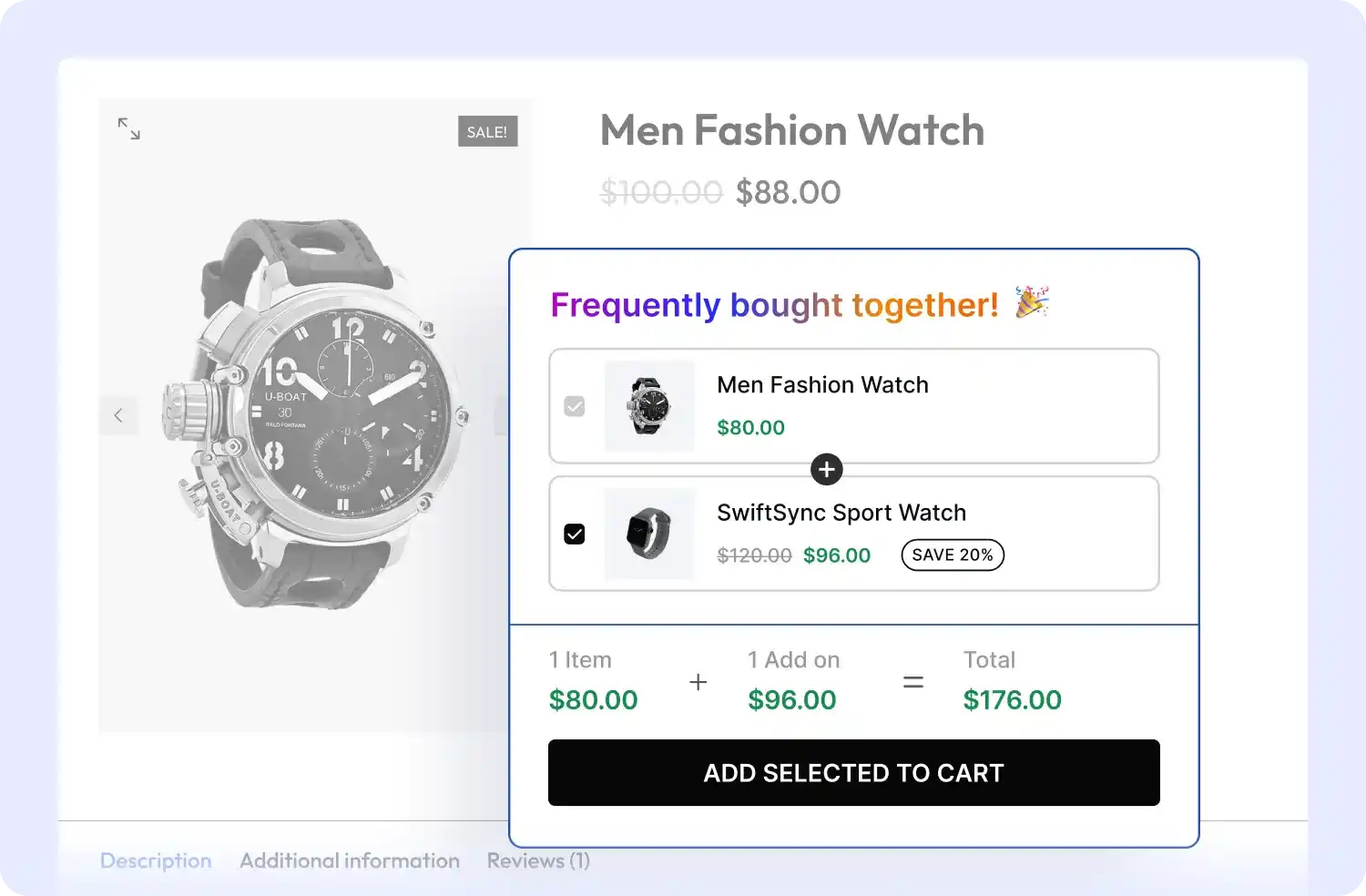
Grab attention with a centered popup that surfaces your Frequently Bought Together offer the moment shoppers are ready to buy.
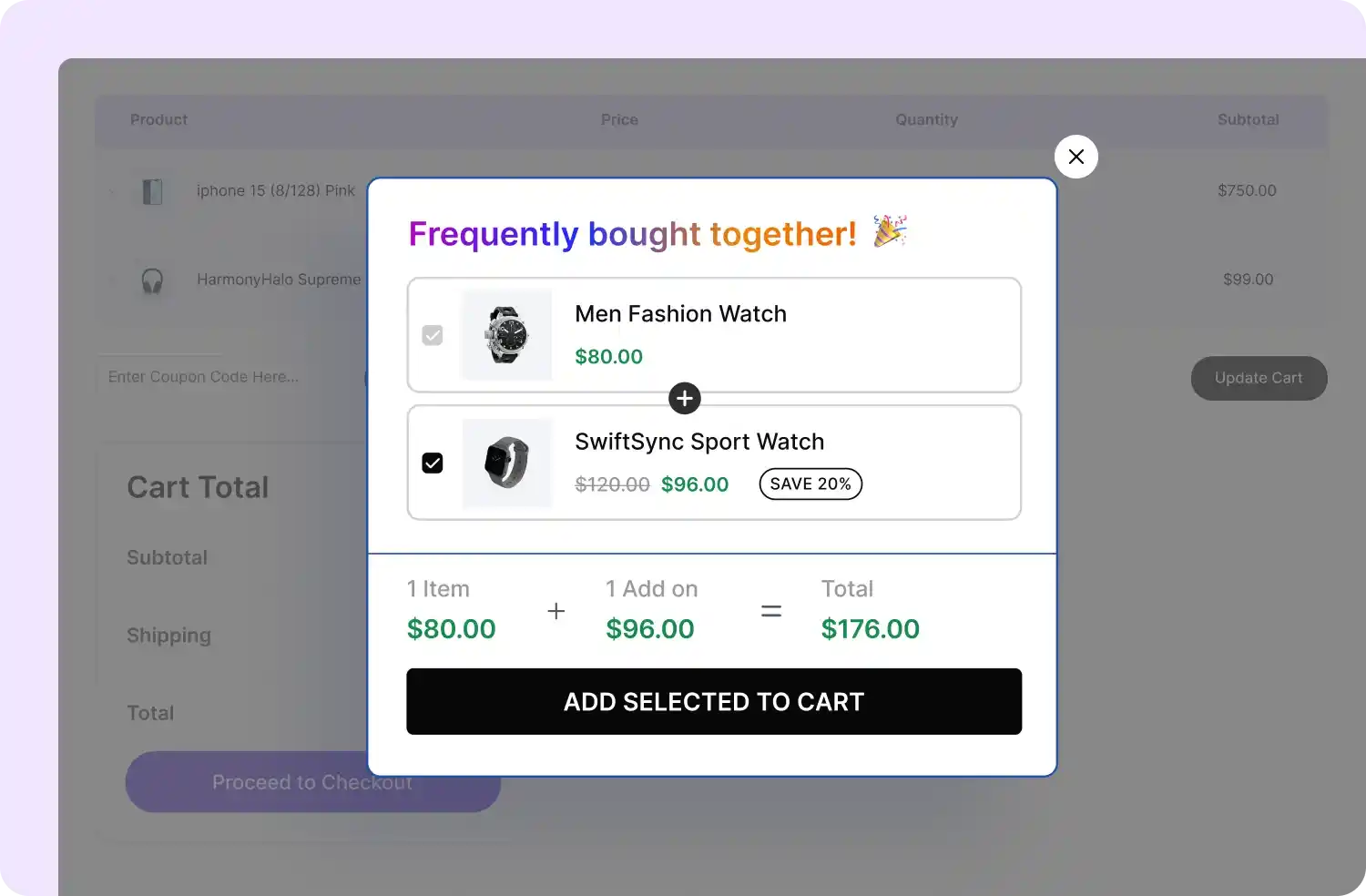
Keep your Frequently Bought Together offer visible with a sticky floating widget so the deal is always one click away.
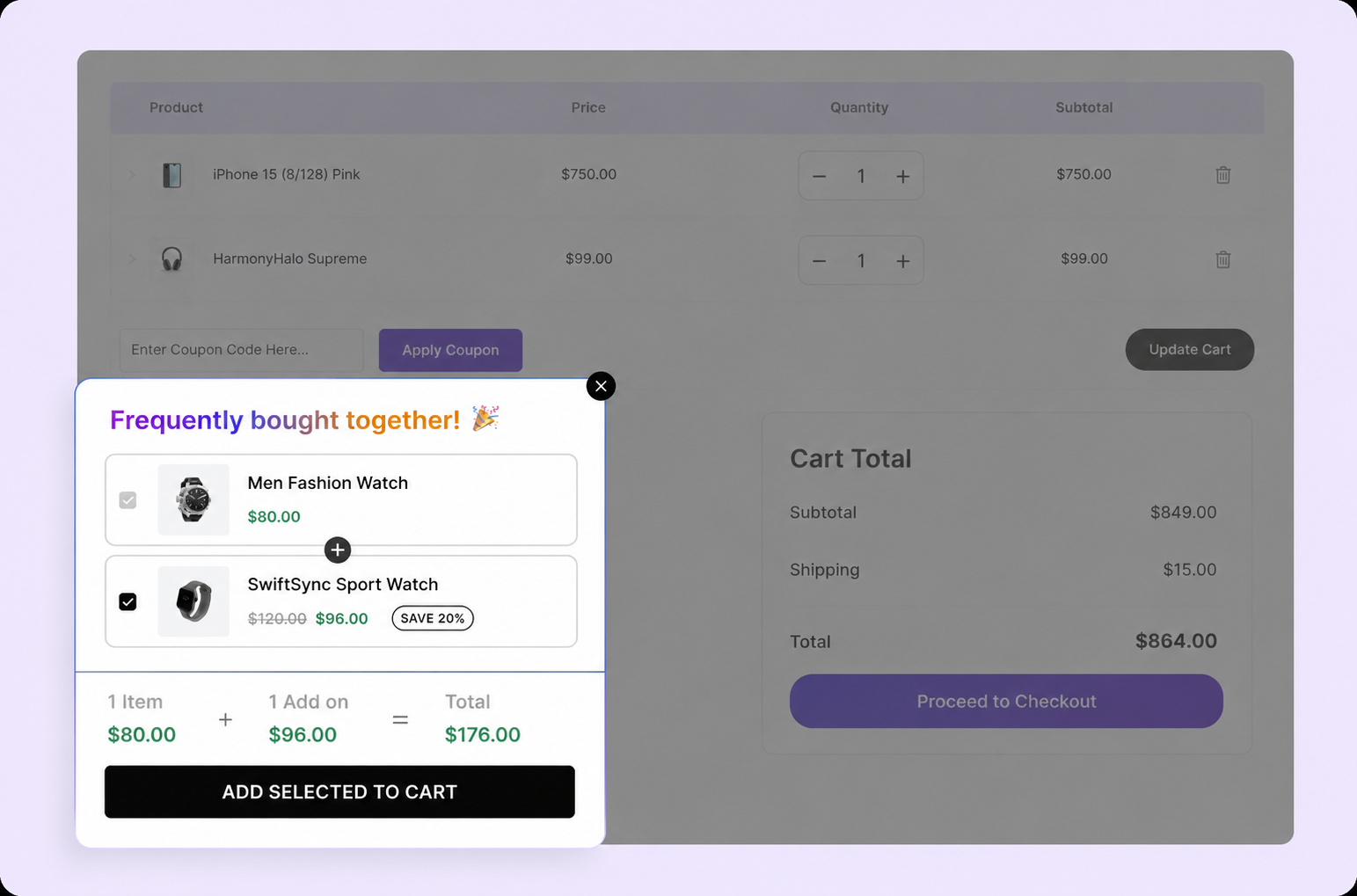
Define which products activate the frequently bought together offers, ensuring promotions appear at the right time and for the right items.
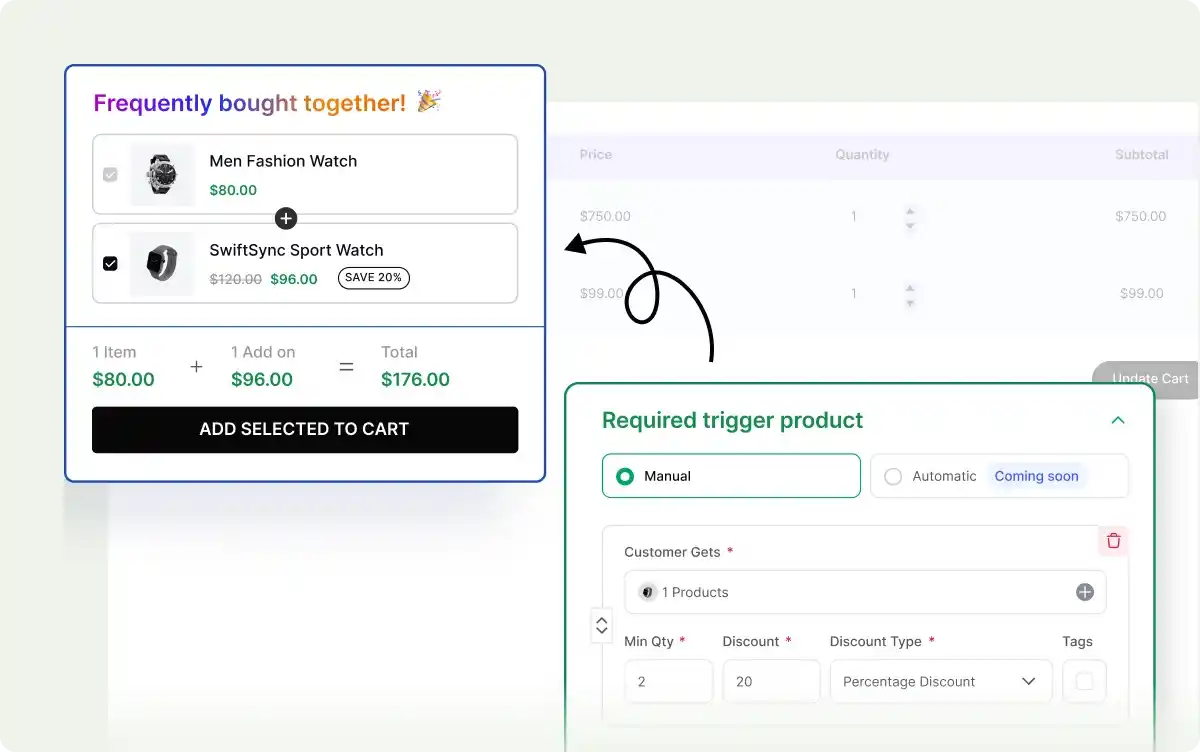
Select which related products will be shown as offered together, giving you complete control over cross-sells and upsells to boost sales.
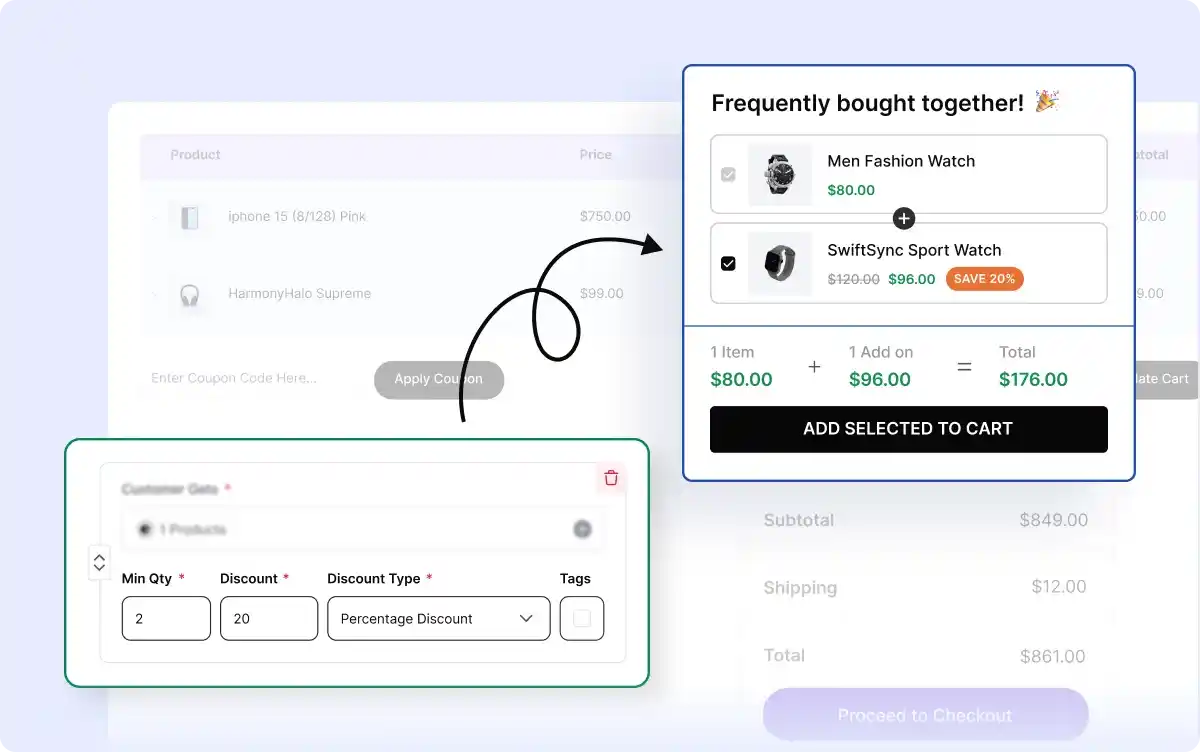
Offer percentage-based or fixed-price discounts on bundles and products to incentivize purchases and increase your average order value.
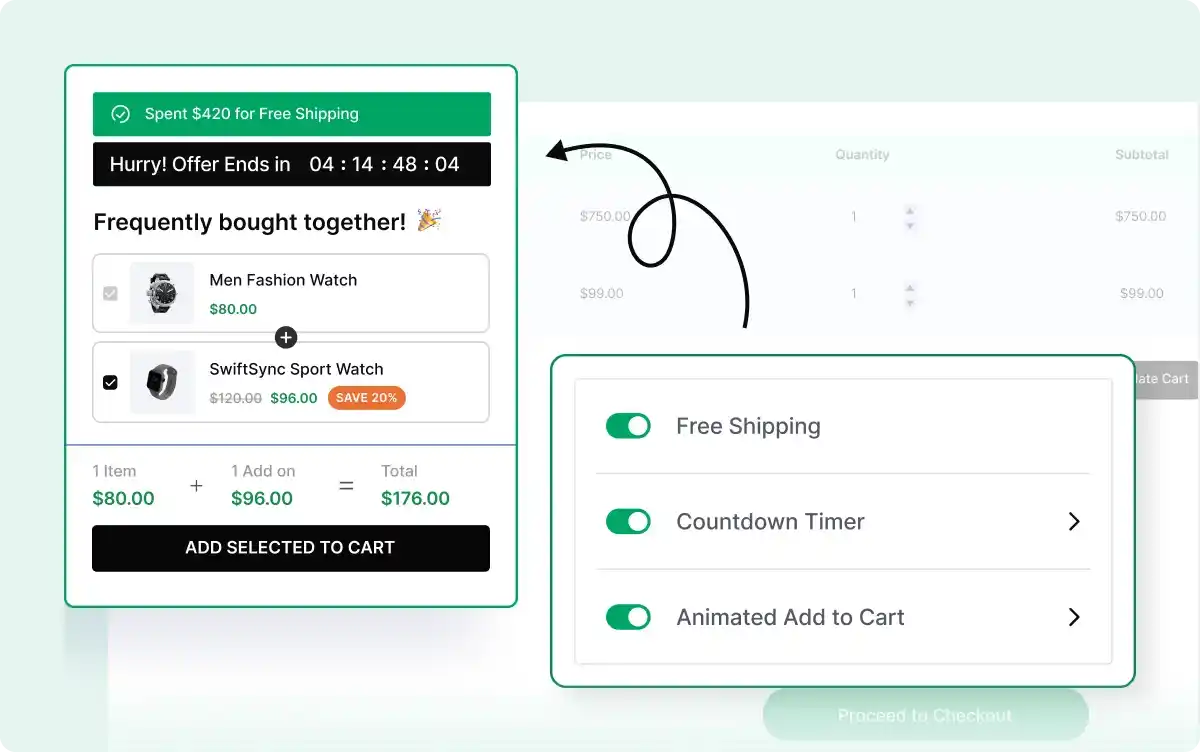
Create urgency with free shipping, countdown timers, and animated add-to-cart effects that grab attention and encourage faster purchases.
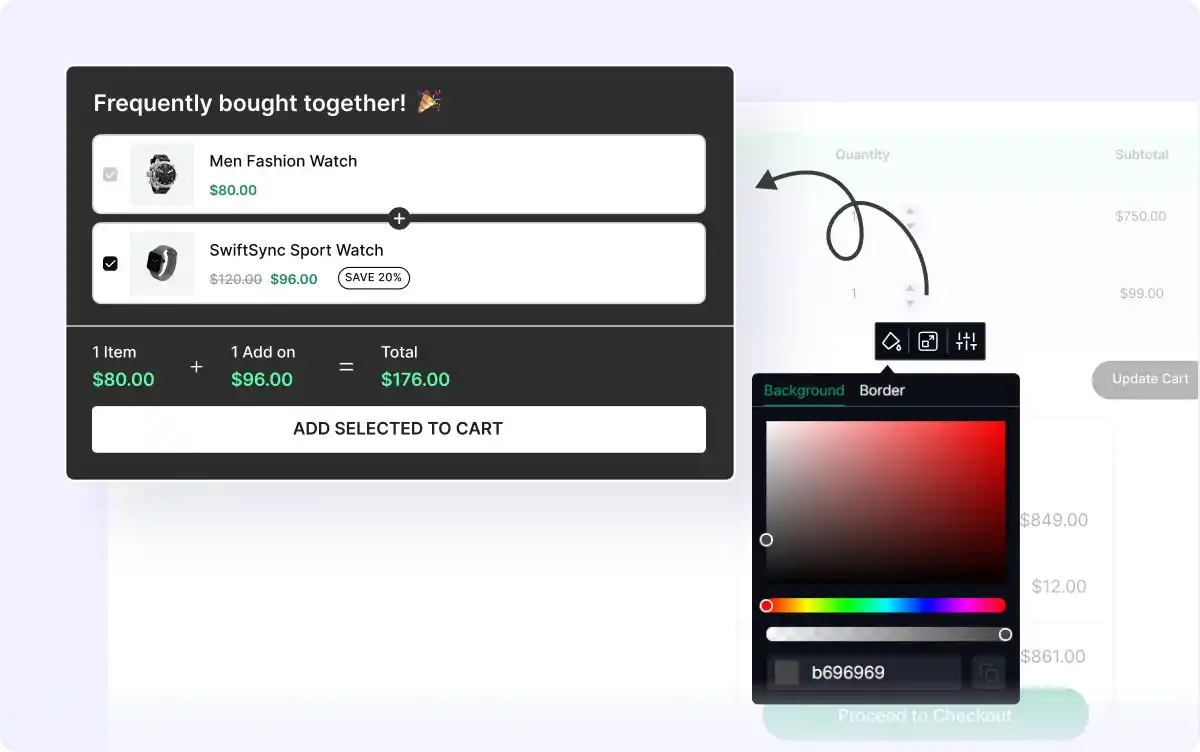
Customize the appearance, layout, and style of your FBT offers to align with your store's branding, creating a seamless shopping experience that boosts conversions.
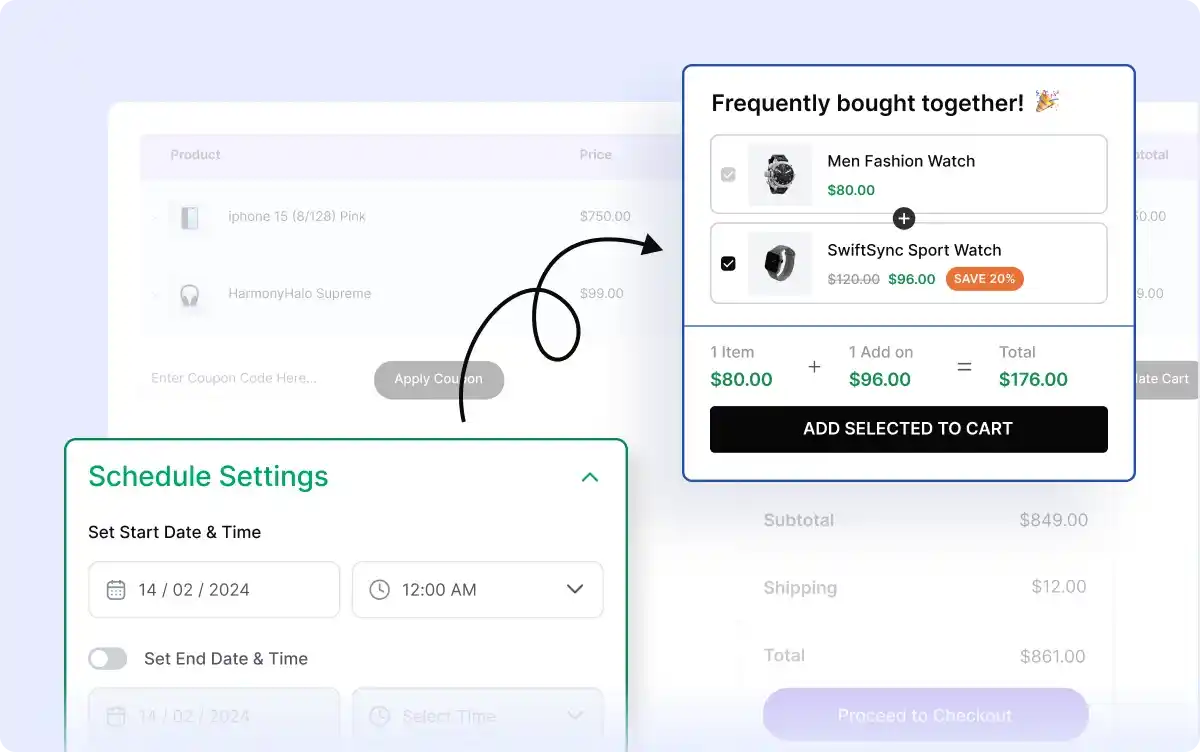
Plan your FBT campaigns by setting start and end dates, ensuring your promotions go live at the right time without manual intervention.
A Frequently Bought Together campaign suggests complementary products that customers often buy with the main item.
For example, if a customer is buying a camera, the Frequently Bought Together campaign might recommend a memory card, tripod, and camera case.
If you need further assistance after reading this, please don't hesitate to contact us. We're always happy to help!
Follow these steps to create a Frequently Bought Together campaign.
Campaign Name: Create a unique campaign name for easy identification. This helps manage multiple discount campaigns.
Short Code: Use shortcodes to place your Frequently Bought Together campaign in a specific position or with third-party solutions.
Pages:
Select where you want to show the frequently bought together campaign. There are four options:
Page Status: You can enable or disable pages to decide whether the Frequently Bought Together campaign appears on that page.
Display Mode:
Choose how to display your FBT campaign with these three options:
In-Page
The bundle discount offer will be displayed directly on the desired page.
Select an in-page position from the dropdown menu (10 options available).
Note: The in-page position option is not available for campaigns on checkout or thank you pages.
Pop-Up
The offer will appear as a pop-up on the desired page.
Floating
The offer will stay floated on the desired page.
In this section, select the main products for which you want to offer complementary items. These main products will serve as the trigger and display the related products.
Click on the Select an option field and choose your main product. You have three options:
Enable Required Trigger Product: Toggle this option on to make the main product mandatory for getting a discount on related products.
OR Relation: The OR relation means only the main product from the current page needs to be added to get the offer.
AND Relation: The AND relation means all the main products must be added to get the offer on related products.
For additional details on the (AND/OR) relation, click here.
From this section, you can select related products and set discounts for each. Choose as many products as you find relevant to the main products. To add related products and set up discounts, follow these steps:
Explore these frequently asked questions about Frequently Bought Together campaigns — so you can make a quick decision about whether you want to use it.
Feel free to contact our support team in case you have questions.