Quantity Discount
Campaigns
A Quantity Discount is a pricing strategy where customers get a discount for buying an item in bulk. The more they buy a product, the cheaper each unit becomes.
If you need further assistance after reading this, please don't hesitate to contact us. We're always happy to help!
Create Campaign
To create a Quantity Discount campaign, follow these steps.
- From your Shopify Dashboard, go to Bundlewise → Campaigns → click on the Create Campaign button.
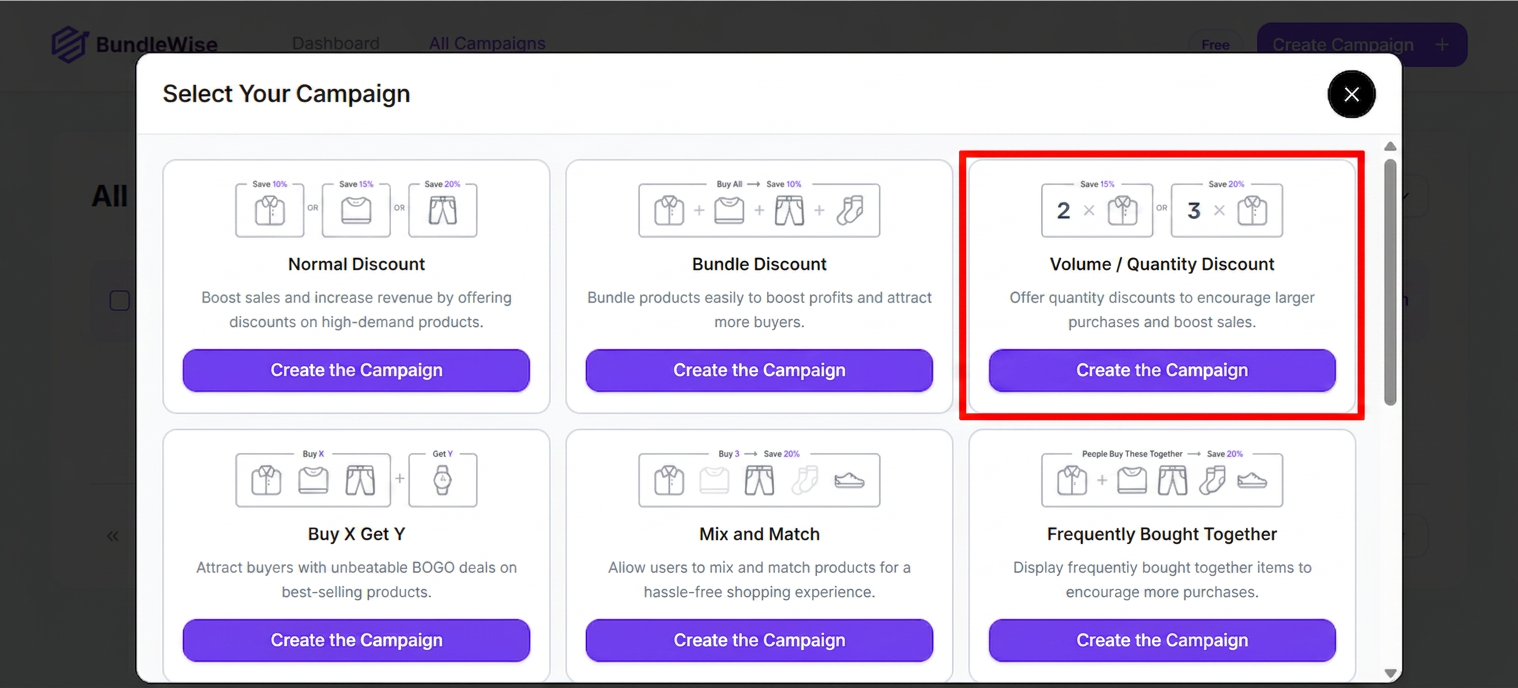
- From the pop-up page, choose Quantity Discount → click on the Create The Campaign button.
Set Up Initial Options
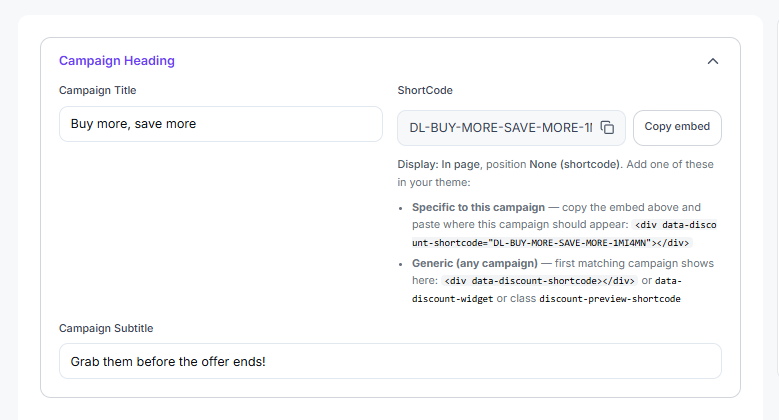
Campaign Name: Create a unique campaign name for easy identification to manage multiple discount campaigns efficiently.
Short Code: Use shortcodes to place your quantity discount campaign in a specific position or with third-party solutions.
Pages: Select where you want to show the quantity discount campaign. There are two options:
- Product Page: When customers view the product, it triggers and shows offers for other items.
- Cart Page: When customers add the product to the cart, it triggers and displays discounts on the cart.
Page Status: You can enable or disable pages to decide whether the quantity discount campaign appears on that page.
Display Style: Select how to present your quantity discount campaign. There are three options:
1. In-Page: The quantity discount campaign will be displayed directly on the desired page.
- Select an in-page position from the dropdown menu (7 options available).
2. Pop-Up: The quantity discount will appear as a pop-up on the desired page.
- Choose a pop-up animation (8 options available).
- Enable the immediate trigger to appear as soon as the page loads. Or set a delay in seconds for it to appear later.
3. Floating: The quantity discount will stay floated on the desired page.
- Pick a floating position from four options.
- Enable the immediate trigger to appear as soon as the page loads. Or set a delay in seconds.
Trigger Product
In this section, select the products for which you want to make the quantity discount. These will act as trigger products for your Quantity Discount Campaign.
Click on the Select an option field and choose your trigger product(s). You have three options:
- All products: It's not common to use all products as a trigger for a quantity discount. But this option is available. You can also exclude certain products.
- Specific product: Search and select the products for which you want to make a quantity discount.
- Specific category: Choose specific categories to apply the quantity discount to all products within those categories. You can also exclude certain products from the categories you selected.

Quantity-Based Discount
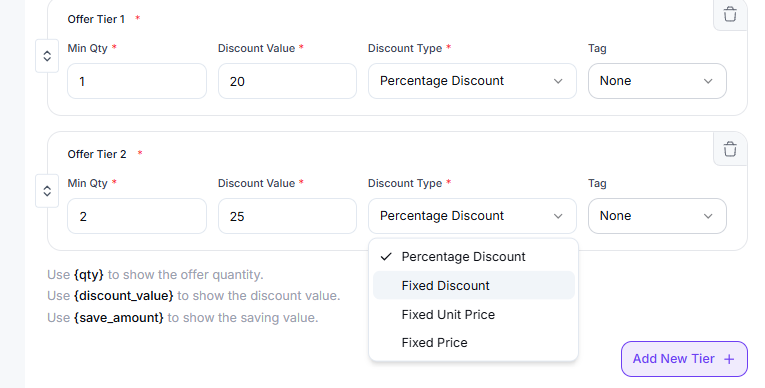
In this section, you can set quantity-based discount rules for a product by defining specific quantity ranges and assigning a discount to each. This allows you to offer increasing discounts as customers purchase more units of the product, encouraging bulk buying. You can add multiple tiers to apply different discounts at different quantity levels.
- Set the minimum quantity of the product in the Req. Qty field.
- Enter the discount amount you want to offer for the chosen quantity.
- Select the type of discount from the dropdown menu. There are 4 discount types.
- Percentage Discount: Offer the product at a reduced price by a certain percentage of the original price.
- Fixed Discount: Cut a specific amount from the product's original price.
- Fixed Unit Price: Set a specific price for each unit of the product, regardless of its original price.
- Fixed Price: Set a fixed total price for the entire quantity purchased, no matter how many units are in the order.
- Click the + Add New Offer Product button to add more products with different quantities and discounts.
- Click on the Tags field to add a label, like Most Popular, to any entry.
- Use the trash bin icon to delete the entry if needed.
- You can drag and drop to reorder easily.