Next Order Coupon
Campaigns
The Next Order Coupon campaign helps you reward shoppers with a discount on a future order. Use it to thank repeat buyers, recover one-time purchasers, or run post-purchase loyalty offers.
Create a Next Order Coupon Campaign
- Open your app from Shopify admin → Apps.
- Go to Campaigns.
- Click Create campaign.
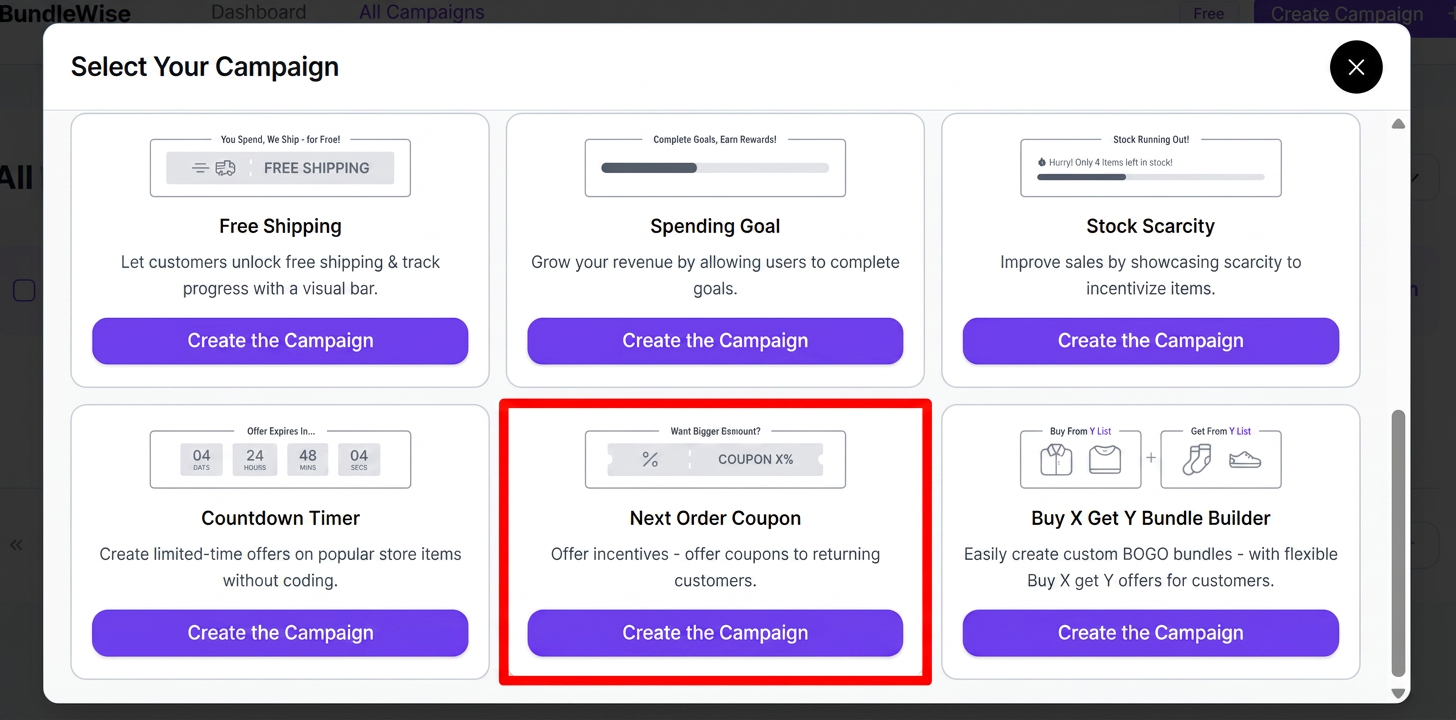
- Select Next Order Coupon, then continue to the campaign editor.
- Configure settings below, then Save and Publish when ready.
Where the Coupon Appears
In the campaign editor (Pages).
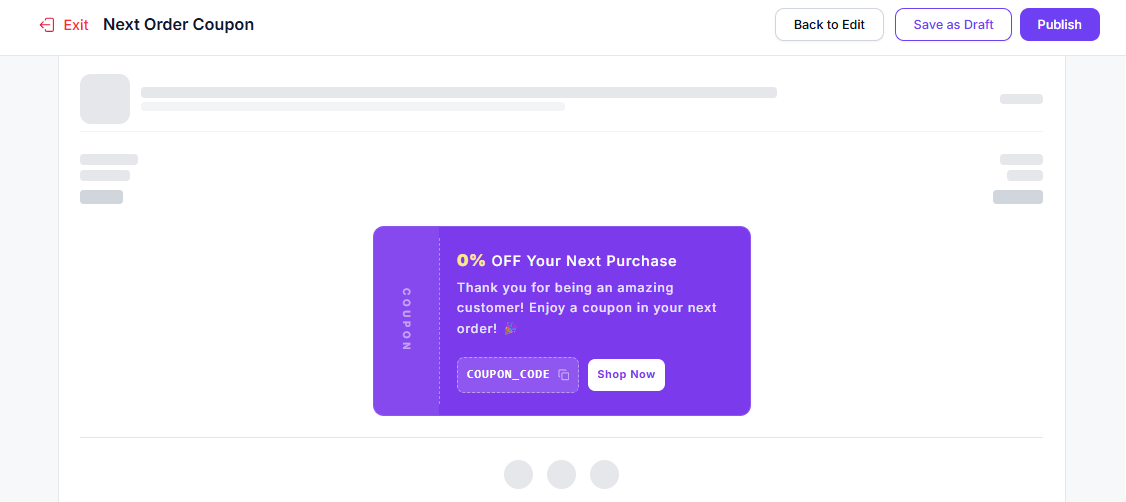
The page picker is built around Email placement for layout and messaging preview. Use the Email tab in the editor to preview how the coupon block looks in an email-style layout.
Coupon Modes
Static Coupon
- One shared discount code for all eligible customers (e.g. WELCOME10).
- Pick an existing code from Shopify or from coupons created in this app.
- Create new coupon / Edit coupon opens in-app (edit applies to app-created coupons; Shopify-native codes are edited in Shopify admin).
- The same code is shown in the account widget and preview.
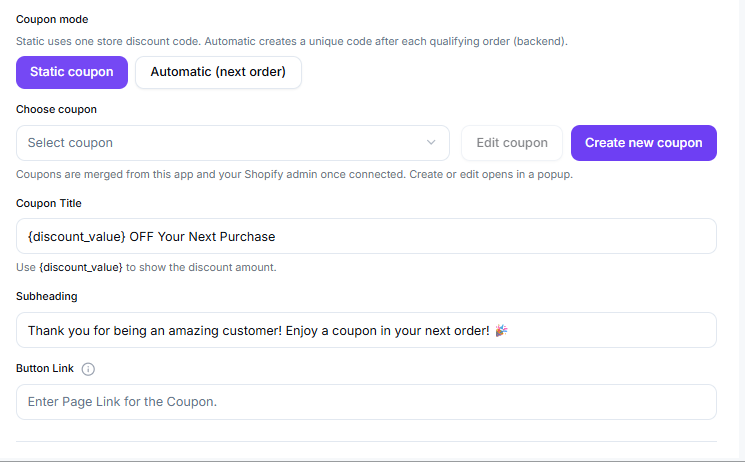
Automatic (Next Order)
- After each qualifying paid order, the app creates a unique, one-time Shopify discount code for that customer.
- You define discount type and value in the campaign (not by picking a pre-made Shopify coupon).
- Optional code expiry (days after issue).
- Customers see their code on the account widget (when enabled) and may receive it by transactional email (see below).
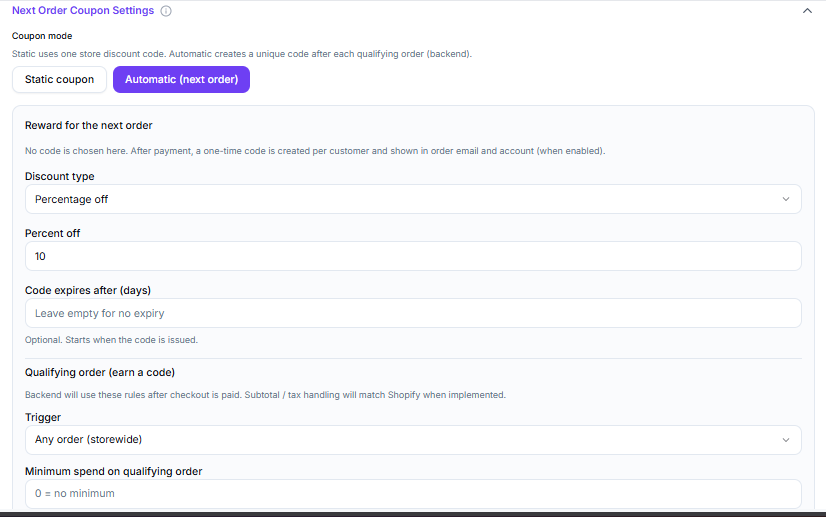
Qualifying Orders (Automatic Mode Only)
These rules run when Shopify sends the orders/paid webhook:
| Setting | Behavior |
|---|---|
| Trigger | Any order (storewide) or Order includes specific product(s) |
| Trigger products | If "specific products" is selected, the order must include at least one chosen product |
| Minimum spend on qualifying order | Optional minimum subtotal (store currency); empty or 0 = no minimum |
| Who can earn a code | Any checkout (guest or logged in; guests matched by order email when possible) or Logged-in customers only |
| Max codes per customer | Optional lifetime cap for this campaign |
| Cooldown (days) | Optional wait between issued codes for the same customer |
Schedule the Campaign
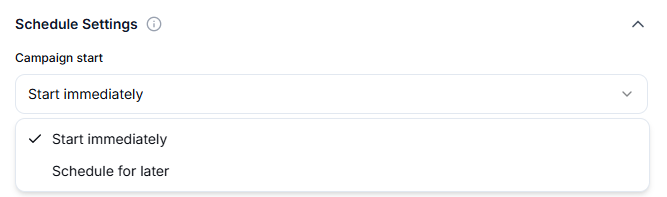
Use Schedule settings like other campaigns:
- Start date/time (and optional end date/time).
- Campaign only runs while published and within the schedule window.